Note: Prior to setting up multicast paging, check to make sure your network isn’t blocking multicast on their network. If you are not certain, reach out to your IT department for clarification.
- Log into the Voicelogix Manage portal at manage.voicelogix.com
- Access the domain you are setting up multicast paging on and navigate to the inventory tab
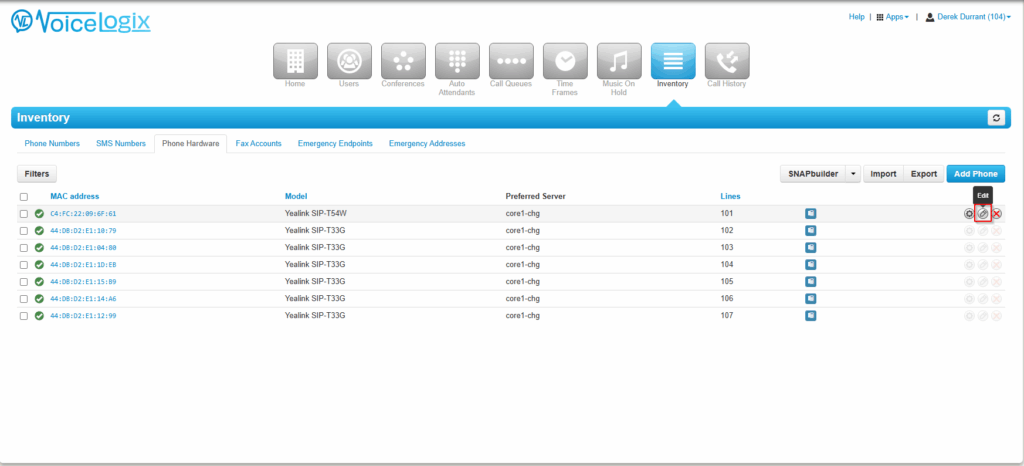
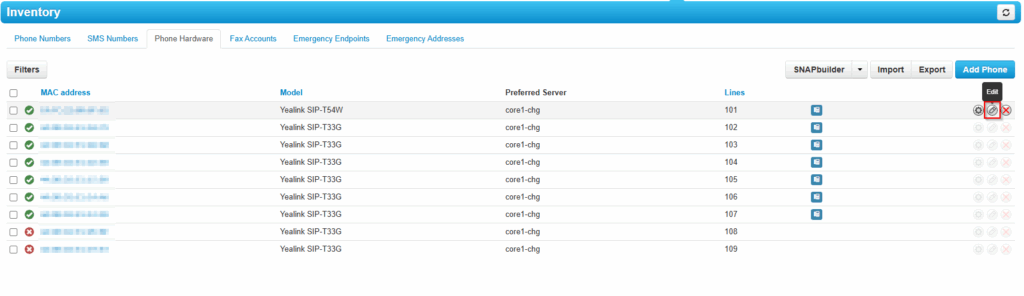
- Click the pencil icon next to the device you wish to setup multicast paging. Follow the below steps for each manufacturer.
Yealink Overrides
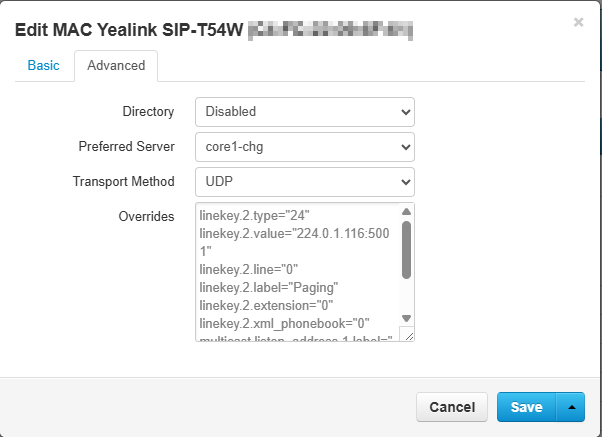
In the window that opens, click the advanced tab and enter the following information
linekey.X.type=”24″
linekey.X.value=”224.0.1.116:5001″
linekey.X.line=”0″
linekey.X.label=”Paging”
linekey.X.extension=”0″
linekey.X.xml_phonebook=”0″
multicast.listen_address.1.label=”[DomainAsListedWithNoSpaces]”
multicast.listen_address.1.ip_address=”224.0.1.116:5001″
Once completed, click the up arrow next to save and click “Save and Resync” to apply the changes now. If you need to wait to apply the changes, click “Save” instead.